
Inclusive content: how to check for unconscious bias
Updated: Sep 30
You're already in the habit of checking your spelling and grammar as you work, but have you ever considered whether your unconscious biases show up in your everyday communication? Poorly chosen words or phrases can result in you excluding or alienating the people you're trying to connect with.
Conventions and norms in language constantly shift over time, and what was once ‘good practice’ or represents accepted or acceptable use is constantly being updated and replaced - Chartered Institute of Linguistics
I recently discovered that there's functionality built into Microsoft Word that helps you spot potential biases in real-time. It even offers alternative wording suggestions.
Of course, you can never rely on technology alone to ensure you communicate in an inclusive way. I've added some inclusive language resources at the end of this post that can also help.
What the inclusivity checker does
Microsoft Word's inclusivity checker works in the same way as spelling or grammar checks, actively scaning text for ageism, gender bias, ableist language, cultural slurs, socioeconomic assumptions, and more.

As you type, the inclusivity checker flags words or phrases that may reflect unconscious biases in your document with purple double underlines or dotted lines.
I decided to put it to the test, and found mixed results.
1. Gender bias
Words can reinforce assumptions about gender specific professionals or titles. I found the inclusivity checker to be fairly reliable at flagging terms like manpower, chairman, policeman, fireman, mailman, and mankind.
It suggests neutral equivalents like workforce, chairperson or chair, police officer, firefighter, postal worker, and humanity.
2. Gender-neutral pronouns
Written communication can often default to binary phrasing that assumes only two genders or default to masculine pronouns. The inclusivity checker will look for phrases like 'he or she', 'his or her', or using 'he' as a default universal pronoun.
It may also help you to rephrase sentences to use the singular 'they or their' or restructure the sentence to remove gendered pronouns altogether.
3. Age bias
When referring to younger or older people, careless phrasing can lead to you unintentionally patronising your audience or reinforcing stereotypes.
I anticipated that the inclusivity checker would help me to replace terminology such as 'the elderly' with more respectful person-centred language such as 'older adults'. This is one of the recommendations flagged in Google's developer documentation style guide (link at the end of this article). However, Word's inclusivity checker didn't flag terms like this in my test.
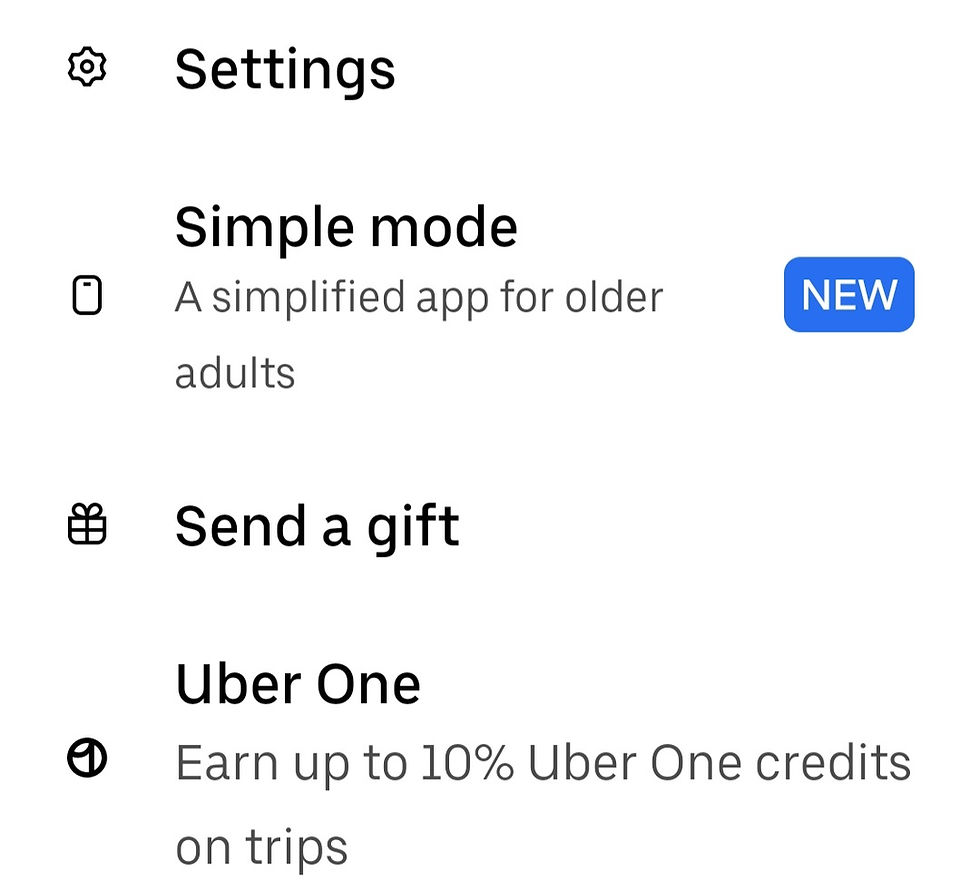
Using the right words is, of course, only part of the solution. You also need to use them in the right context. For example, Uber allow users of their app to switch to a 'Simple mode'. This is a brilliant user-centred development, but suggesting the simplified version is 'for older adults' makes several assumptions. Firstly, it implies that age is the only reason people would need or prefer an interface that is as easy and intuitive to use as possible. Secondly, it makes assumptions about age and digital literacy.
4. Cultural and racial bias
Some terminology can reinforce racial inequality, or stem from colonial history.
The inclusivity checker could help you identify inappropriate technical or business jargon like 'whitelist', 'blacklist', 'master and slave', or outdated regional descriptions. It can help you to find suitable alternative phrases like 'allow list', 'block list', 'primary and secondary', as well as accurate geographic descriptions. I found it to be fairly reliable at identifying these phrases. However, the inclusivity checker did not flag any of the racist language listed in the BBC's editorial guidance (link to this at the end of the article), that I tested it against.
Google recognises that many such non-inclusive terms are "in wide use in the [digital] industry." The terminology can even be hard-coded into the back-end of applications. They've produced some good practice solutions for replacing or writing around 'established terms' in their 'Write inclusive documentation' guidance.

5. Disability and ableist language
Careless language can trivialise physical or mental health conditions, position people as victims, or reinforcing the use of outdated terminology.
In my test, Word's inclusivity checker didn't help to challenge use of phrases like 'suffering from cancer' or 'AIDS victim'.
It did challenge some inappropriate language used to describe disability, but was not consistently reliable.
6. Sexual orientation bias
Although you may not intend it, your language may default to heteronormative assumptions or rely on outdated identity labels (for example, by making assumptions about opposite-sex partners). Suitable alternatives could include 'spouse', 'partner', or 'huband or wife'.
Whilst Word's inclusivity checker didn't help me to identify heteronormative language, it did pick up on phrases like 'man and wife' (describing the male in relation to a gender and the female in relation to a social role).
7. Socioeconomic bias
Language can stigmatise people based on their income, class or status.
Talking about ‘poor women/girls’ is patronizing and implies that being poor is an inherent characteristic of who they are, rather than the situation that they are in. It also implies that women and girls who live in poverty are a homogenous group and primarily characterized by their economic situation. Oxfam - Inclusive Language Guide
In my test, the inclusuvity checker didn't flag the use of such phrases as problematic.
How to enable the inclusivity checker
Inclusivity checks are turned off by default in standard installations of Microsoft 365, so you need to enable them manually.
Here is how to turn them on across both the desktop app and the web version of Word.
Using the desktop app
Open 'Options' on Windows or 'Preferences' on Mac
On Windows, select 'File' in the ribbon, then select 'Options'
On Mac, select 'Word' in menu bar and then select 'Preferences'
Navigate to 'Proofing Settings' (under 'Spelling and Grammar')
On Windows, select 'Proofing' from the sidebar. Under 'When correcting spelling and grammar in Word', ensure 'Grammar and Refinements' is selected in the 'Writing Style' drop-down menu. Then select 'Settings'
On Mac, select 'Spelling and Grammar' and open the 'Grammar and Refinements' settings
Enable Inclusiveness Checks
Scroll down through the settings list until you reach the Inclusiveness section. Check the boxes for each category you wish to enable:
Age bias
Cultural bias
Gender bias
Gender-neutral pronouns
Racial bias
Mental health bias
Sexual orientation bias
Socioeconomic bias
Save Your Settings
Select 'OK' to save your preferences and close the options menu.
Word will now automatically flag inclusive language opportunities in all current and future documents.
Using Word for the Web (Online Version)
Open any document
Go to the 'Home' or 'Review' tab and select 'Editor' to open the Editor side-panel
Click the 'Settings' gear icon in the Editor panel
Under 'Proofing and Refinements', expand the 'Inclusiveness' section
Toggle on the inclusive language checks you want active, then close the settings panel
How to review inclusivity checker suggestions
To check your writing for inclusivity, open the 'Editor' panel on the right sidebar. Any flagged terms will be shown under the 'Refinements' section, under 'Inclusiveness'. Clicking on a flagged term gives you an explanation of why the phrase might be problematic, alongside instant, single-click replacement suggestions.
Key takeaways
We all have unconscious bias.
Our biases can show up in our communications and alienate or offend those we want to connect with.
Best practice in the use of language and terminology changes over time, often as a result of research with the people it impacts.
Using technology to check for inclusivity is one line of defence, but should never replace our personal responsibility to keep developing our knowledge and awareness.
Inclusive language resources
Inclusive language guide - Oxfam (external website, opens in this window)
Google Developer documentation style guide (external website, opens in this window)
Inclusive language resources - Chartered Institute of Linguistics (external website, opens in this window)
Racist language (including racial slurs and racist / ethnic abuse) - BBC (external website, opens in this window)
Reporting and portrayal of tribal peoples - BBC (external website, opens in this window)
Why language matters - National Society for the Prevention of Cruelty to Children


